You save a clean copy of a Threads clip, send it to the family group, and it arrives looking like it was filmed through a shower door. WhatsApp did that. Attach a video the normal way and the app compresses it to save data, whatever the quality of your file.
You can avoid it by sending the clip as a document. That takes about two extra taps. The other person gets the same file you have, byte for byte.
Your three options
| How you send it | What happens to quality | What the other person sees | Use it for |
|---|---|---|---|
| Normal video | Compressed heavily | Plays right in the chat | Quick shares where quality does not matter |
| HD option | Compressed less, but still compressed | Plays right in the chat | A decent middle ground |
| Document | Sent unchanged | The other person taps to download, then opens it | Anything you want to keep sharp |
The HD button looks like the answer, and it does help. But it only reduces the compression, so the file that arrives still isn't the file you sent. If you care about quality, use the document option.
First, get the file on your phone
Copy the link from the Threads post, paste it into the downloader, and save the MP4. Then remember where it landed, because the next step depends on it.
- iPhone: Safari puts it in the Files app, under Downloads. Leave it there for now. WhatsApp's document picker reads from Files, so you don't need to move it to Photos.
- Android: it goes to your Downloads folder.
The iPhone and Android guides have more on finding saved files.
Sending it on iPhone
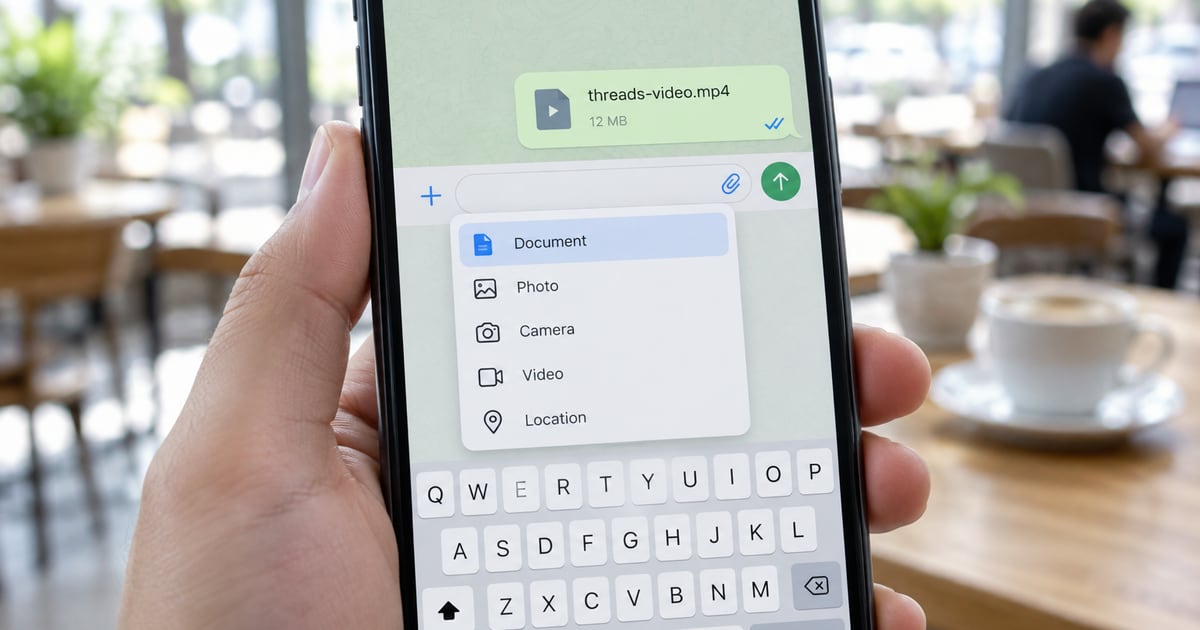
- Open the chat and tap the + button next to the message box.
- Choose Document.
- Browse to Downloads in Files and tap the video.
- Tap Send.
Sending it on Android
- Open the chat and tap the paperclip icon.
- Choose Document.
- Browse to your Downloads folder and tap the video. If it isn't listed, use the option to browse other files.
- Tap Send.
WhatsApp changes its menus from time to time, so the labels on your phone may differ slightly. The Document option has been there for years.
Will the file be too big?
Almost certainly not. WhatsApp's document limit is reported at 2 GB, and a Threads clip is nowhere near that. A 30-second clip is usually 4 to 15 MB, and even a 3-minute one tends to stay under 100 MB.
Other apps
Telegram has the same idea built in, under its “send as file” option. Gmail caps attachments at 25 MB and offers a Google Drive link above that, so most short clips fit as they are. For longer clips, a Drive or Dropbox link is usually the easier route anyway, since the person can watch it in the browser.
If the clip looks bad on your own phone before you send it, compression in the chat isn't the problem, and this post on blurry Threads videos will help you find what is. When the clip belongs to someone else, sending it to a friend is one thing and posting it publicly is another, and the repost guide explains where that line sits.